
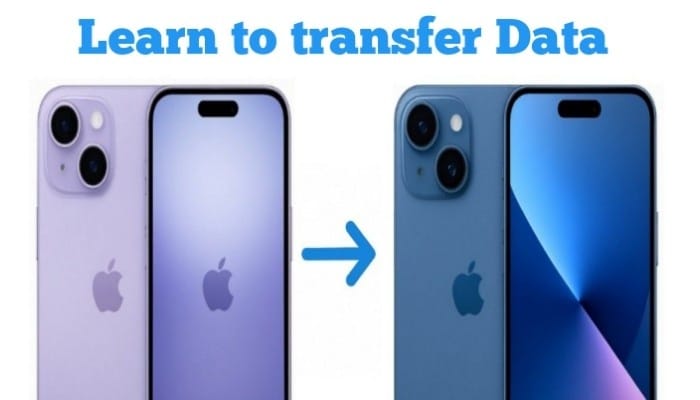
Upgrading to a new iPhone is always exciting. The iPhone 17 is getting a lot of attention across the U.S., and for good reason. Sleeker design, faster performance, better cameras—it’s tempting for anyone with an older model. But the thing is switching devices can feel daunting. You may have ask one question,How Will I move all my contacts,photos,apps and messages without losing anything?
Don’t worry—you’re definitely not the only one stressing about this. Moving everything from your iPhone 16 to a shiny new iPhone 17 can feel a bit overwhelming, but honestly, it doesn’t have to be. With a little guidance, moving your data can actually be a breeze. In this guide, I’ll walk you through some easy ways to transfer everything, share a few handy tips I’ve picked up along the way, and flag some common mistakes so you don’t get tripped up. By the time you’re finished, your iPhone 17 will feel just like your old iPhone 16—only faster, smoother, and ready for action.
Some FAQs
How to Transfer Data from iPhone 16 to iPhone 17?
What’s the easiest way to transfer data from iPhone 16 to iPhone 17?The quickest method is Apple’s Quick Start. Just place your new iPhone 17 near your old iPhone 16, follow the on-screen prompts, and your data—apps, photos, messages—will move over automatically. It usually takes anywhere from a few minutes to an hour, depending on how much stuff you have.
Can I use iCloud to move my data?
Definately! You can use, Just Back up your iPhone 16 to iCloud first then restore that backup on your iPhone 17 during the setup process. But before that make sure you have enough iCloud storage, or consider temporarily upgrading if your backup is large.
What about using a computer?
Yes! You can back up your iPhone 16 to a Mac (Finder) or Windows PC (iTunes), then restore that backup to your iPhone 17. This is great if you have lots of media or a slow Wi-Fi connection.
Will my WhatsApp, photos, and apps transfer too?
Yes—most apps, messages, and photos transfer without issue. Some apps might ask you to log in again but everything else should appear just like on your old iPhone.
How long does the transfer usually take?
It depends on how much data you have and how much are you transferring. Small backups can take hardly 10–20 minutes, while bigger ones with lots of videos and apps can take upto 1–2 hours. So have Patience.
Can I transfer without wifi?
Yes! Your messages, apps, photos, videos, and most settings can move over. Some apps might ask you to log in again but don’t worry ,as everything will appear like your old iphone.
Will my Apple Watch work after the transfer?Yes! If you use Quick Start, your Apple Watch data can move along too. You might need to enter your Apple ID password once, and that’s it.
What to do if my transfer fails?
No worries—just restart both iPhones, double check your connections, and try again. Most problems are minor and easy to fix.
First Things First: What You Need to Know
Before diving in, there are a few simple things to check. These may seem obvious, but trust me—they save a lot of headaches.
Wi-Fi is key. Make sure both phones are connected to a stable network. A shaky connection can slow things down or cause errors.
Charge your phones. Both devices should be at least 50% charged, or better yet, keep them plugged in. You don’t want your transfer stopping halfway because of a dead battery.
Apple ID & password. You’ll need it. This is critical since your apps, iCloud backup, and purchased content are tied to this account.
Update iOS. Make sure both your iPhone 16 and iPhone 17 are on the latest version of iOS. Apple often fixes transfer bugs in updates.
Check storage. Your new iPhone 17 should have enough space for all your apps, photos, and media from your iPhone 16. If you’re tight on space, consider offloading unnecessary files first.
Got all that? Great—let’s move on.
Quick Start: The Fastest Way to Move Everything
Apple made it easy with Quick Start, which is hands-down the fastest method for transferring your data. It’s mostly automatic, wireless, and surprisingly smooth.
Here’s How to do it:
Turn on your iPhone 17 and place it near your iPhone 16. A “Set Up New iPhone” message should appear on the iPhone 16—tap Continue. You’ll see a swirling animation on your new device. Scan it with your old phone’s camera, and follow the prompts.
When asked, select Transfer from iPhone. Keep the devices close together—trust me, it makes a difference. Depending on your data size, this can take a few minutes or over an hour if you have tons of photos and videos. Once finished, your iPhone 17 will restart and voilà—all your apps, settings, and media are there.
Pro tip: If you have an Apple Watch paired with your old iPhone, Quick Start can move that data too. Just follow the prompts, and your watch will sync automatically.
Using iCloud: The Wireless Alternative.
Not a fan of keeping devices side by side? No problem. iCloud backup is another excellent option, especially if you like working wirelessly.
Let’s go into the step
On your iPhone 16, go to Settings → [Your Name] → iCloud → iCloud Backup, and tap Back Up Now. Make sure Wi-Fi is strong.
Next, turn on your iPhone 17 and follow the setup instructions.When it asks, select Restore from iCloud Backup and choose the most recent backup from your iPhone 16. Sit back while your new iPhone restores your apps, messages, photos, and settings.
Remember iCloud gives you only 5GB for free. If your backup is bigger, consider upgrading your storage temporarily. Alternatively, clean out old photos or apps before backup—it makes things faster.
Wired Method: iTunes or Finder
iTunes (Windows) wired approach or Finder (Mac) works great for people who like controlled w ired approach. It would also be great especially if you have a large library of photos, videos, or apps.
Here’s what I specially do
Connect your iPhone 16 to your computer with a USB cable. Open iTunes or Finder, select your iPhone, and choose Back Up Now. If you want passwords and Health data included, make sure to Encrypt Backup.
Once the backup is done, disconnect your old iPhone and plug in the iPhone 17. During setup, choose Restore from Mac or PC and select the backup you just made. Wait until everything transfers. Depending on how much stuff you have—photos, videos, apps—this process can take anywhere from about half an hour to over an hour.
Why I like this method: It’s usually faster than iCloud for bigger backups, and the best part is it doesn’t rely on Wi-Fi at all. So, if your iPhone 16 is packed with hundreds of videos or large apps, this is definitely the way you should follow.
Here is some Extra Tips for you to Transfer Smoothly
Keep your devices close: Even with iCloud, if you them nearby it helps with verification and makes the process smoother and faster.
Update your apps afterward: Once the transfer is completed then open the App Store and check for updates. Some apps might need the latest version to run properly.
Move only what you really need: If you’re not using any such apps or media, it might be a good time to leave them behind. It keeps your new iPhone clutter-free.
Be patient: Transfers can take longer than expected if you’ve got lots of photos, videos, or big apps. Grab a coffee, relax, and let it do its thing.
Special Tips for WhatsApp, Photos, and Media
Many people worry about transferring WhatsApp chats. Here’s the simplest way:
Open WhatsApp on your iPhone 16, go to Settings — Chats —Chat Backup — Back Up Now, and wait for it to finish. When you set up WhatsApp on iPhone 17, restore the backup.
For photos and videos, iCloud Photos works well. If you have a massive library, connect to Wi-Fi overnight. For music, podcasts, and Apple Music, your content automatically transfers with your Apple ID. Non-Apple music can be moved via iTunes or Finder backup.
Common Issues & How to Fix Them
Sometimes, things don’t go perfectly, and that’s totally normal. Here’s what you can do if something goes wrong:
Transfer stuck: If it seems like your transfer has frozen, don’t panic. Just restart both iPhones and try again—it usually does the trick.
Slow transfer: Got a huge library of photos, videos, or apps? That can slow things down. My tip: start the transfer overnight so it can run without interruptions.
Missing apps or data: If some apps or content don’t show up, double-check that you’re signed in with the correct Apple ID and restoring from the right backup. Most of the time, this solves the issue.
Wi-Fi Problems: Use the wired iTunes/Finder method if your Wi-Fi is unstable.
My Final Thoughts
Upgrading to the iPhone 17 doesn’t need to be stressful at all. Whether you go with Quick Start, iCloud, or iTunes/Finder, you can safely move everything from your iPhone 16—photos, messages, apps, and all—without losing a thing.
Personally, I usually start with Quick Start for smaller backups because it’s fast and simple. But if I’ve got a ton of videos, music, or large apps, I prefer using iTunes—it just feels more reliable. Whichever method you choose, your new iPhone 17 will feel just like home in no time.
So go ahead, grab your iPhone 17, follow these steps, and enjoy a smooth, worry-free transition. Seriously—once it’s done, you’ll be wondering why you ever worried about moving your data in the first place!